


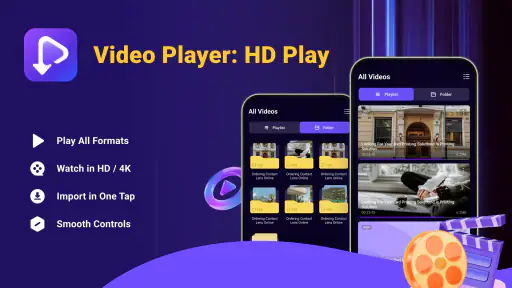
I approached Video Player: HD Play as the kind of app you open when your phone already contains a video and you simply want it to play properly. Its appeal is easy to understand: it is a free video player from Dakwah Media, aimed at everyday viewing rather than editing, publishing, or managing a large media library. The promise of handling common formats in HD or 4K sounds straightforward, but the real test is what happens when a file refuses to open, a video stutters, or the picture looks different from what you expected.
After spending time with it, my impression is that this is best viewed as a practical playback tool. It can be useful when the default player on a phone is too limited, especially if you move videos between devices or receive files from different sources. At the same time, it is not a magic solution for every playback problem. Some issues come from the file itself, the phone’s hardware, storage access, or the way a video was transferred. Knowing where the app ends and the surrounding setup begins makes the experience much less frustrating.
Where playback usually gets stuck
The first point of friction is often not the player interface but the file-selection step. A video may be saved in a download folder, a messaging-app folder, an external storage location, or a private area created by another application. If it does not appear immediately, it is tempting to assume the player cannot read it. In practice, I would first check where the file was saved and whether it is fully available on the device.
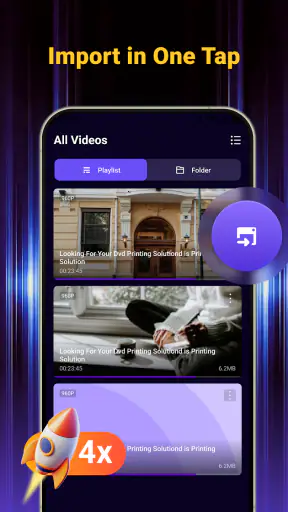
The one-tap import approach is useful when the file is visible and accessible, but it does not remove the need for basic housekeeping. A partially downloaded video, a file with an unusual extension, or a clip still being copied from another device can all behave like a playback failure. I recommend waiting until the transfer is complete, then opening the file again rather than repeatedly tapping the player and expecting a different result.
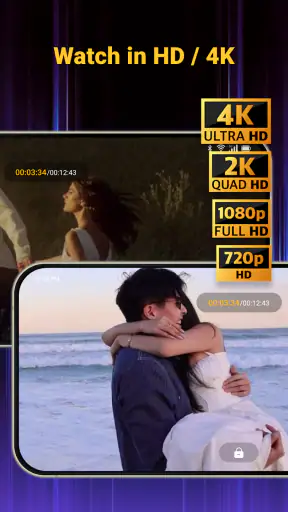
Another common misunderstanding concerns the words HD and 4K. They describe the quality the app can work with, not a guarantee that every video will appear in that quality. A lower-resolution recording cannot become genuine 4K simply because it is opened in a 4K-capable player. The screen, the original file, and the phone’s decoding ability all matter. This is one of the most important expectations to set before judging the app.
When a video opens but pauses, the cause may be performance rather than compatibility. High-resolution files demand more from the processor, graphics hardware, memory, and battery. A newer phone may handle the same file comfortably while an older device struggles. I would test a smaller or lower-resolution clip before concluding that the application itself is unreliable.
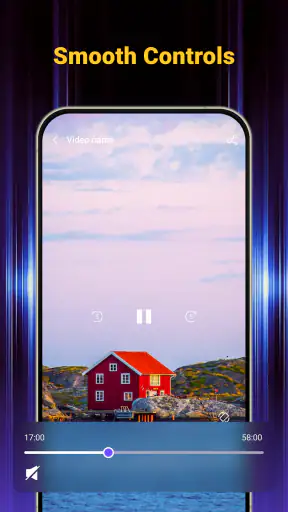
Controls can also feel different from the player that came preinstalled on a phone. Even a simple interface may place seeking, pause, orientation, or screen controls in unfamiliar locations. My advice is to spend a minute learning the control layout with a short clip. That small adjustment is worthwhile because it prevents accidental jumps through a long video and makes everyday viewing more comfortable.
For people who mainly watch videos recorded on their own phone, these issues may never appear. The app becomes more valuable when the library includes downloaded lessons, shared family recordings, camera exports, or files created on another device. In those situations, a dedicated player can be a useful fallback when the built-in option gives an unhelpful error or handles the file inconsistently.
What to check before blaming the player
I would begin with the simplest check: play a different video. If several unrelated files work and one does not, the problem is probably tied to that particular file. It may be incomplete, damaged, or encoded in a way the phone cannot process smoothly. If nothing plays, then it makes more sense to inspect storage access, available space, and the device itself.
The file’s location matters as well. A video stored on removable media or in a folder controlled by another application may not behave like a normal local file. Moving a copy to a familiar device folder can be a useful diagnostic step. This is not a sophisticated fix, but it separates a file-discovery problem from a decoding problem without changing the video.
I also suggest checking the phone’s free storage before importing a large collection. Playback does not necessarily require making another copy, but low storage can cause wider system problems, including failed transfers and sluggish behavior. Keeping the original file intact while testing is sensible, especially if it came from a camera, a work project, or a family archive.
The app is free and carries an Everyone age rating, which makes it approachable for a broad audience. That does not mean every file or device combination will perform identically. A parent setting it up for a child, for example, should test the intended videos first. The age rating describes general suitability, not the content of the files someone chooses to open.
It is also worth checking whether the phone meets the basic software requirement. Video Player: HD Play works with Android 7.0 and later, so a device running an older system is outside that supported range. On a compatible phone, I would still keep the operating system reasonably current when possible, because media handling and storage behavior can depend on the wider system environment.
A calmer setup for mixed video collections
My preferred setup is deliberately simple. I create a clear folder for videos I intend to watch, place a few test files there, and open them one at a time. This makes it easier to tell whether a problem follows the file or the player. It also avoids the confusion that comes from importing a large, disorganized collection before the basic playback experience has been checked.
If you are moving videos from a computer, let the transfer finish before opening them. If you are receiving them through a messaging service, save the completed file locally instead of trying to play a preview that may still depend on the service. These habits sound obvious, but they prevent a surprising number of false diagnoses.
For a 4K clip, I would test it with the phone connected to power only if the device is comfortable in that situation and the viewing session is long. High-resolution playback can be demanding, and heat or battery-saving behavior may affect smoothness. I would not treat a short stutter during a demanding file as proof that every video will stutter.
A useful trade-off is quality versus responsiveness. If a file offers several versions, the smaller one may be the better everyday choice on a modest phone. The visual difference may be hard to notice on a small display, while the lower workload can make seeking and playback feel more immediate. Video Player: HD Play gives you a way to open high-quality material, but choosing the right version remains part of the user’s job.
The current version is V1.0.6, and I would keep it updated through the normal app store process. Updates can matter when a phone changes its system software or when a particular group of files exposes a playback issue. I would avoid relying on unofficial copies or modified installers, because they make troubleshooting harder and can introduce problems unrelated to the application.
Recovering a failed viewing workflow
When playback fails, I use a short recovery sequence rather than repeating the same tap. First, I close the video and try another local file. Next, I confirm that the original file opens elsewhere on the same phone or on another trusted device. Then I check whether the file was completely transferred. This sequence quickly shows whether I am dealing with an app issue, a damaged file, or a broader device problem.
If one video fails while others work, I leave the working setup alone and focus on that file. Re-copying it can help if the first transfer was interrupted. If the source is available, downloading or exporting it again is more useful than changing several phone settings at once. A clean replacement gives you a meaningful comparison.
If every file fails, I would restart the phone and try again before making more disruptive changes. I would also check whether the files are stored in a location the player can access and whether the device has enough free space to operate normally. Clearing app data or reinstalling can remove local state, but I would treat that as a later step and make sure important files are backed up first.
One practical workflow is to keep an untouched original and a test copy. Use the copy for moving, renaming, or placing in another folder. If the copy plays and the original does not, the issue may be related to the original location or transfer. If neither plays, the file itself or its encoding deserves more attention. This approach is especially helpful with long recordings, where starting over can take considerable time.
For people who watch downloaded lessons or offline recordings, I recommend testing a short section before leaving for a trip. Do not wait until you are without reliable connectivity to discover that a file is incomplete or that the phone cannot handle it smoothly. Video Player: HD Play can be part of an offline routine, but the routine should include a quick pre-check.
Seeking through a long video is another area where expectations matter. A player may open a file successfully yet take longer to jump to a distant point, particularly with demanding formats or an older phone. If precise navigation is central to your work, a desktop media player may still be more convenient. On a phone, I find it more practical to use clear file names and shorter chapters when I control how the videos are prepared.
The same principle applies to subtitles, alternate audio, casting, playlists, and library organization: these are the areas where dedicated desktop tools or more established media suites may offer a richer experience. I would choose this app for direct playback first, not because I expect it to replace every media-management tool. Its value is strongest when the task is simply opening a video and watching it.
When the app is not the cause
A file can be perfectly visible yet still be unsuitable for smooth playback. The container, video codec, audio codec, bitrate, frame rate, and resolution all influence how a phone handles it. Two files with similar names and lengths can place very different demands on the device. Without changing anything in the app, one may play smoothly while the other drops frames or refuses to start.
This is why I avoid judging the player from a single unusual file. I use a small set of ordinary clips, a higher-resolution sample, and a file that has been transferred from another source. The pattern is more informative than one dramatic failure. If only the demanding sample struggles, the phone may simply be reaching its practical limit.
Network conditions can also be misleading. If a video is being opened from a cloud or messaging workflow, the apparent playback problem may actually be buffering or incomplete availability. A fully downloaded local copy is the fairest test of a local video player. Once the file is stored on the device, you can separate internet performance from playback performance.
Heat is another overlooked factor. A phone that has been charging, running navigation, recording video, or handling other demanding tasks may reduce performance temporarily. Closing unnecessary activity and allowing the device to cool can produce a more useful test than immediately uninstalling the player. This is a general device consideration, but it matters particularly for high-resolution viewing.
Screen limitations should be considered too. Watching a 4K file on a display that cannot show that level of detail will not provide the same benefit as viewing it on a compatible screen. The file may still be valuable for preserving quality or connecting to a larger display later, but the phone’s panel determines what your eyes can actually see during ordinary use.
Compared with a phone’s built-in player, Video Player: HD Play makes sense when you want a separate option for broader local playback and straightforward controls. Compared with a full media suite, it may be preferable for someone who does not want a complicated library or editing workspace. On the other hand, users who need advanced cataloging, deep audio and subtitle controls, network streaming, or professional media inspection may be happier with a more specialized alternative.
That comparison is not a criticism of Dakwah Media’s approach. Simplicity can be a strength. A person who only wants to open a family recording or an offline class video may find a feature-heavy alternative distracting. The trade-off is that a focused player gives you fewer places to look when you want advanced control. I would decide based on the task, not on the largest feature checklist.
Who will get the most from it
I think the app suits Android users who keep a varied collection of local videos and want a free playback option that can work with high-quality material. It is also a sensible choice for someone whose default player has trouble with particular files, provided the phone itself is capable of decoding them.
A realistic everyday example would be a commuter who saves several training videos before leaving home. After downloading them, the user places the completed files in one folder, tests the first minute of each, and then watches them offline during the journey. If one file fails, the user can identify it before leaving rather than discovering the problem on the train. In that workflow, the app is useful not because it solves every format issue, but because it gives the user a clear, dedicated place to test and play the collection.
It can also help a family member who receives camera recordings from different phones. Instead of asking which device created every file, the recipient can try opening the clips in one player and use a smaller test copy when something behaves strangely. That reduces the need to reorganize the entire phone around the source device.
I would be more cautious about recommending it to editors, archivists, or people who need precise professional review. A playback app is not the same as an editing timeline or a media-analysis workstation. If your work depends on frame-accurate inspection, detailed codec information, synchronized external audio, or a carefully organized catalog, a specialized tool is likely the better choice.
Likewise, users who primarily stream rather than store videos locally may not gain much from installing another player. The app’s strongest role is handling files already available on the device. Someone looking for a complete streaming platform, social video service, or editing package should look elsewhere because those are different jobs.
The app has reached over a million installs and holds a 4.5 average from roughly 4.8 thousand ratings, which suggests that many people find its basic purpose worthwhile. I treat that as useful context rather than a guarantee. Playback depends heavily on the phone, the file, and the storage path, so your own short test remains more valuable than any broad popularity signal.
Because it is free, the cost barrier is low. That makes experimentation reasonable: install it, test the files that matter to you, and compare its behavior with the player already on the phone. The time spent organizing a small test folder is more informative than assuming that a high-quality label automatically means perfect playback on every device.
My practical verdict
Video Player: HD Play is a sensible, focused option for Android users who want to open local videos without turning playback into a larger media-management project. I like its straightforward purpose, its support for high-quality viewing, and the fact that it is free and broadly accessible. The developer, Dakwah Media, has positioned it in a part of the app market where usefulness comes from reducing everyday friction rather than adding unnecessary complexity.
My main reservation is that the app cannot control the limitations of a damaged file, an underpowered phone, an incomplete download, or a screen that cannot display the source quality. Users who understand that distinction are more likely to have a good experience. Users expecting every video to play flawlessly simply because the app mentions HD or 4K may be disappointed.
If you install it, start with a few files that you know are complete. Test an ordinary clip before trying a demanding high-resolution recording, keep important originals backed up, and move a troublesome file to a clear local folder before drawing conclusions. Those small steps make troubleshooting faster and reveal whether the app is actually the weak point.
For my needs, I would recommend it as a practical second player and as a convenient everyday choice for mixed local video collections. I would not present it as a replacement for a full editing suite, a professional media analyzer, or a streaming service. Its best quality is dependable simplicity when the job is simply to watch a video. With realistic expectations and a sensible setup, it earns a place on an Android phone that regularly handles files from more than one source.


